
Taxpayer Portal/ Taxpayer Appeals/Agent Portal/ Agent Appeals March 11, 2026
Taxpayer Portal – Appeals Navigation Update
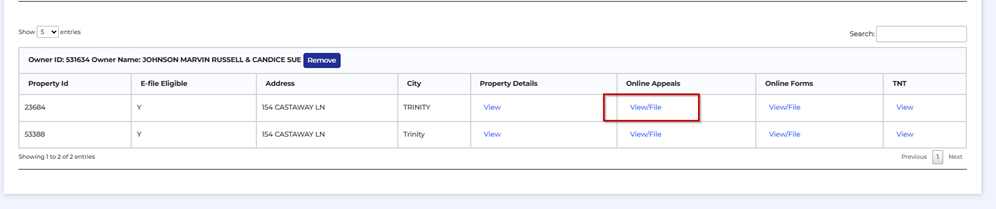
- When a user is logged into the Taxpayer Portal and viewing the Property List page, selecting the View/File button under the Taxpayer Appeals column in the Property List grid will now direct the user to the My Appeals Summary page.
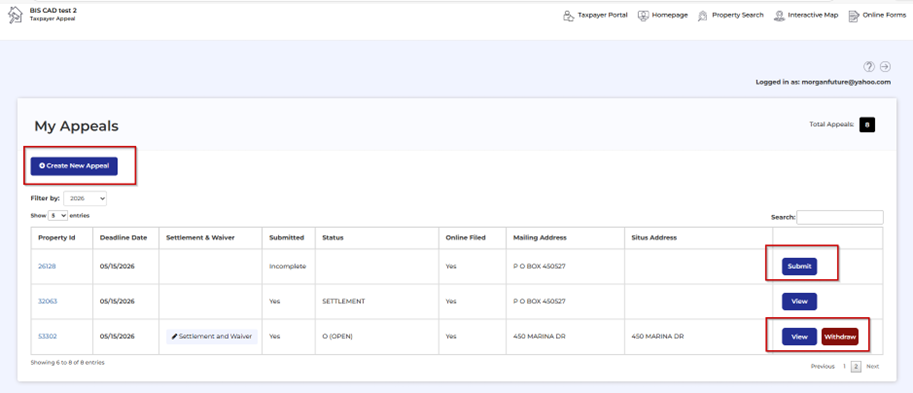
- From the My Appeals Summary page, users can:
– View previously filed appeals
– Complete a previously saved appeal
– Create a new appeal by selecting the Create New Appeal button
This update improves navigation and provides users with a centralized location to manage their appeals.
Taxpayer Appeals – My Appeals Summary Grid Update
- The Create New Appeal button has been updated to improve the appeal submission process. When selected, a pop-up window will now display only the properties associated with the user’s account that are eligible for eFile appeals.
- Properties will not appear in the list if:
– The property is not eligible for eFile appeals, or
– An appeal has already been started or submitted for that property. - If the user does not have any eligible properties available for appeal, the Create New Appeal button will not be displayed.

Taxpayer Appeals – My Appeals Summary Grid Settlement Offer Update
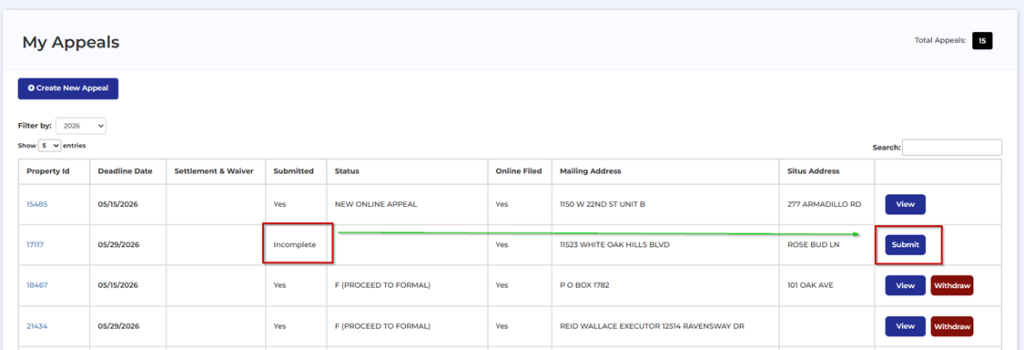
- The My Appeals Summary grid has been updated to better distinguish between incomplete and submitted appeals.
- Appeals that have been saved but not yet submitted will now display a Submit button directly in the grid, allowing users to quickly complete and submit their appeal. Appeals that have already been submitted will continue to display the View button.
Taxpayer Appeals – My Appeals Summary Grid Settlement Offer Update
- The “Settlement and Waiver” button will now only display when there is an active settlement offer that requires action from the taxpayer. For appeals with a signed settlement offer, the button will no longer appear in the summary grid. Users can still view the fully executed settlement agreement by accessing the Appeal Detail page. This update ensures users only see action buttons when further action is required, providing a cleaner and more intuitive experience.

Taxpayer Appeals – My Appeals Summary Grid Year Filter
- The My Appeals Summary grid now includes a Year dropdown that allows users to view historical appeal records. When a previous year is selected:
– Users will see a list of appeals for that year.
– Appeal detail pages will be accessible for previously filed online appeals.
– If your office settings allow paper protests to display in the portal, those records will also appear in the grid. - Please note that new appeals cannot be created while viewing a previous year. To create a new appeal, users must switch the Year dropdown back to the current year, where the Create New Appeal option will be available.

Taxpayer Appeals – New Appeal Reason Added
- The new appeal reason recently added to the State Comptroller protest form, “Incorrect allocation of value of property that qualifies as an archeological site,” has been added to the system and is now available for both Taxpayer Appeals and Agent Appeals.
- Clients can review and manage available protest reason selections in BIS Admin at the following location: Admin > Online Appeals > Appeal Reasons

Taxpayer Appeals – Opinion of Value Field Update
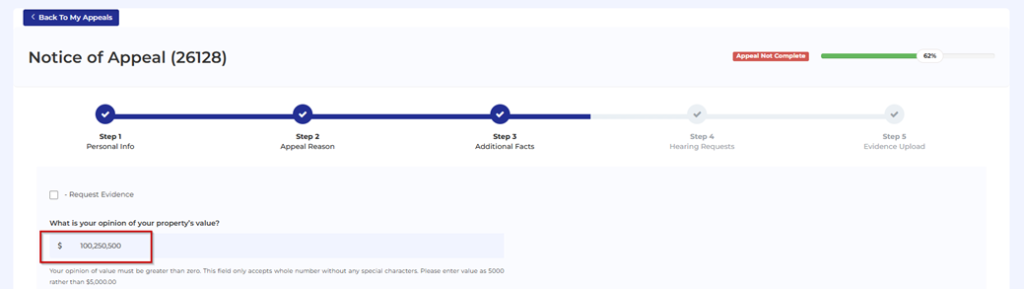
- The Opinion of Value field is now limited to 9 characters to prevent errors when transmitting data to PACS software.
- In addition, automatic numeric formatting has been added, which will insert commas into the value (for example, 100000 will display as 100,000) to make it easier for users to review and confirm the amount entered.
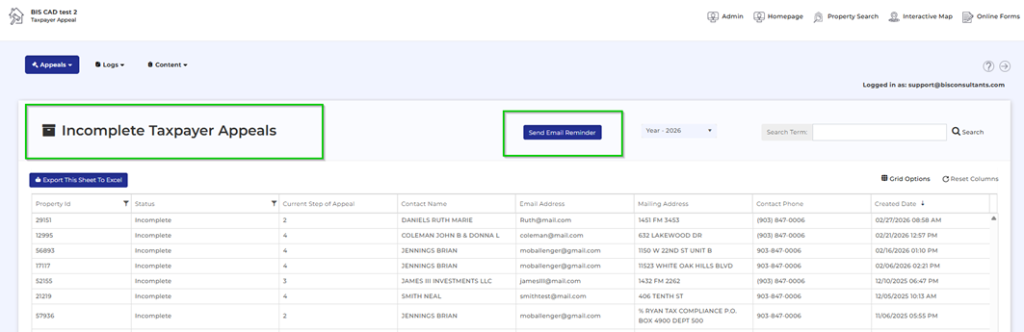
Taxpayer Appeals – Admin Dashboard Incomplete Appeal Email Reminder Enhancement
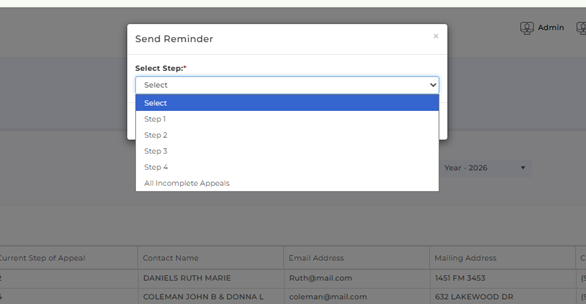
- An update has been made to the Incomplete Appeal email notification feature within the Admin Dashboard. Clients now have the option to send reminder emails to taxpayers with incomplete appeals based on:
– A specific step in the appeal process (e.g., only appeals saved at Step 4), or
– All incomplete appeals, regardless of the step where the appeal was left.
This enhancement allows clients to better target reminder communications and focus outreach efforts where they are most needed. - Important: Only one reminder email per user per day will be sent, regardless of the selected step.
Agent Portal – Session Timeout Message
- Agent Portal sessions will now automatically time out after 10 minutes of inactivity. Users will be required to log back in to continue their session.

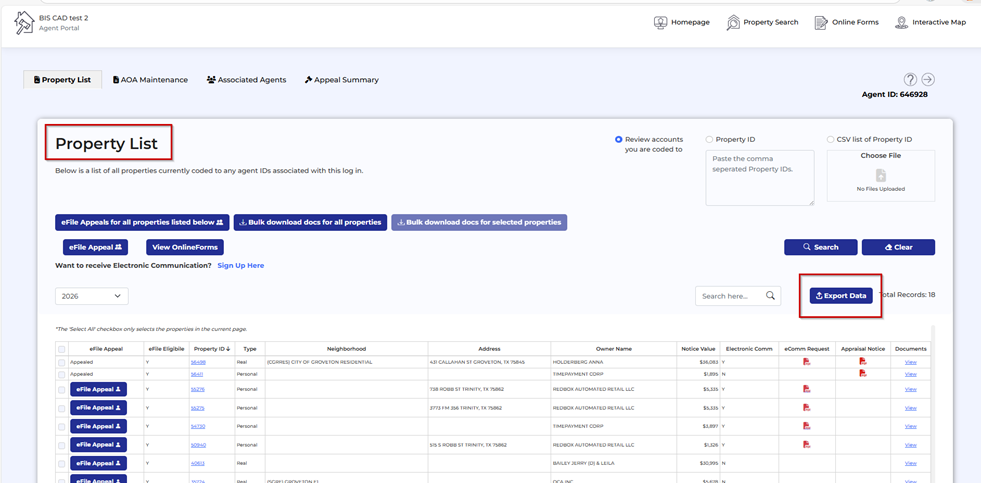
Agent Portal – Property List Grid Export Enhancement
- The Property List Grid in the Agent Portal now includes an Export to Excel option. This feature allows agents to download the grid data into an Excel file, making it easier to sort, filter, and manipulate property information outside of the portal.
Agent Portal – Grid Selection Update
- The “Select All” checkbox in Agent Portal grids will now select all records displayed on the current page only within the Property List and Appeal Summary grids.
- To provide additional clarity, a disclaimer has been added indicating: “The ‘Select All’ checkbox only selects the properties on the current page.”

Agent Portal – Bulk Document Download Enhancement
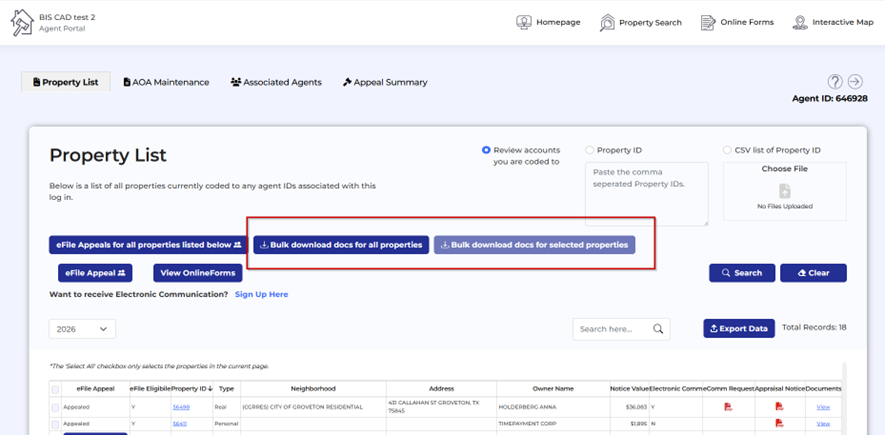
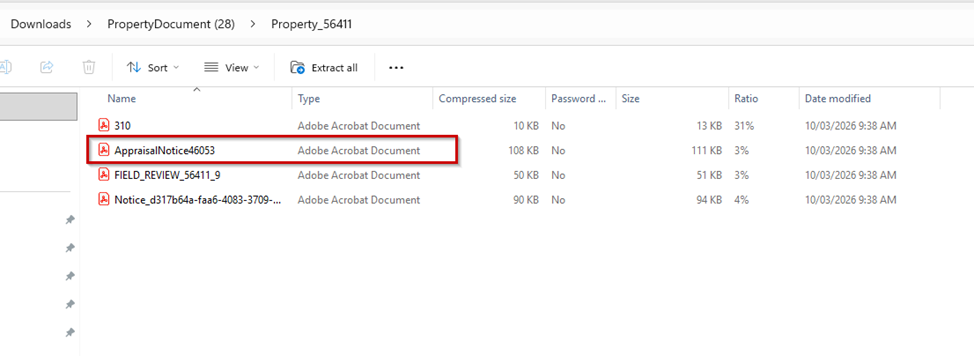
- The Bulk Document Download feature in the Agent Portal will now include Appraisal Notices that have been published to the portal. This allows agents to download appraisal notices along with other available documents in a single bulk download.
Agent Portal – Property List Bulk Download Settings
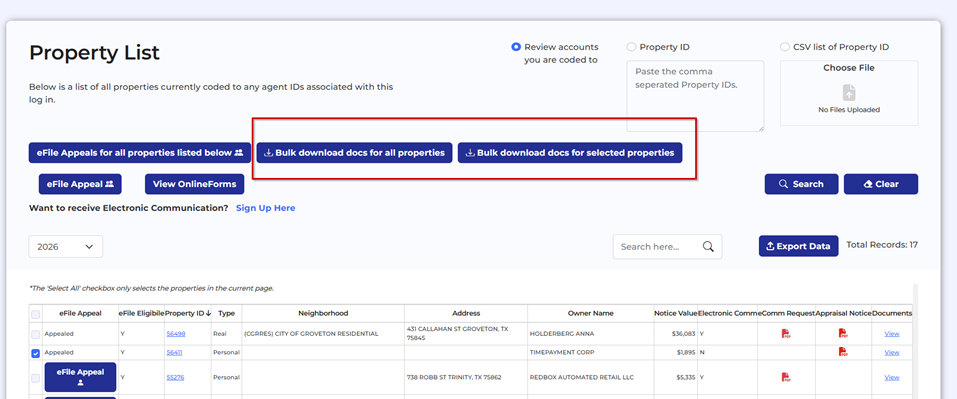
- New settings have been added in BIS Admin that allow clients to control the visibility of bulk download options on the Agent Portal Property List page. Clients can choose to enable or hide either of the following bulk download buttons:
– Bulk Download – All Properties
– Bulk Download – Selected Properties - These options can be managed in the following locations:
– Admin > Online Appeals > Agent Portal Settings > Property List > Turn off Bulk Downloads of All Properties
– Admin > Online Appeals > Agent Portal Settings > Property List > Turn off Bulk Downloads (Selected Properties)
Agent Portal – Online Forms Access
- Agents can now access Online Forms directly from the Property List page in the Agent Portal using the new “View Online Forms” button.
- This feature can be enabled in BIS Admin Settings at the following location:
Admin > Online Appeals > Agent Portal Settings > Property List > Enable Online Forms

Agent Portal – AOA Maintenance Grid Enhancements
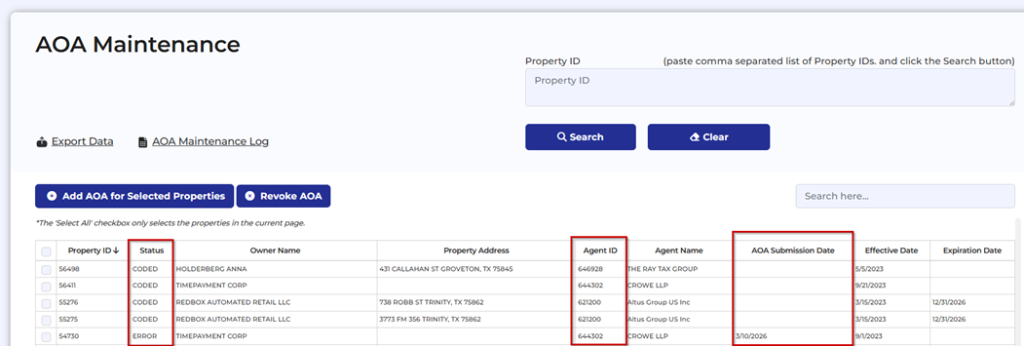
The AOA Maintenance Grid has been updated to improve visibility and tracking of agent assignments:
- Status Column: Displays the current coding status of each property. Possible values include:
– Coded – Agent is successfully coded to the property in CAMA.
– Blank – An AOA has been submitted but the agent is not yet coded to the property.
– Error – Submission failed due to an API error. - Agent ID Column: Shows the Agent ID currently assigned to the property in PACS.
- AOA Submission Date Column: Displays the date the AOA was uploaded through the BIS Agent Portal.
Agent Portal – AOA Upload Enhancement
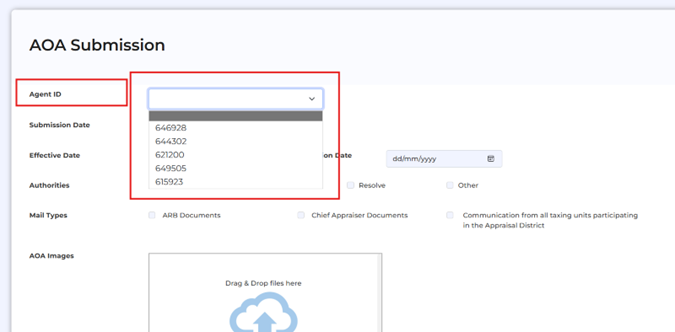
- The AOA Upload feature in the Agent Portal now includes a dropdown selection for Agent ID for users who have multiple associated Agent IDs.
- When uploading a new Agent of Record (AOA), the agent will be able to select the Agent ID that the property should be coded to, ensuring the correct agent association is applied during the upload process.
Agent Portal – Revoke AOA Option
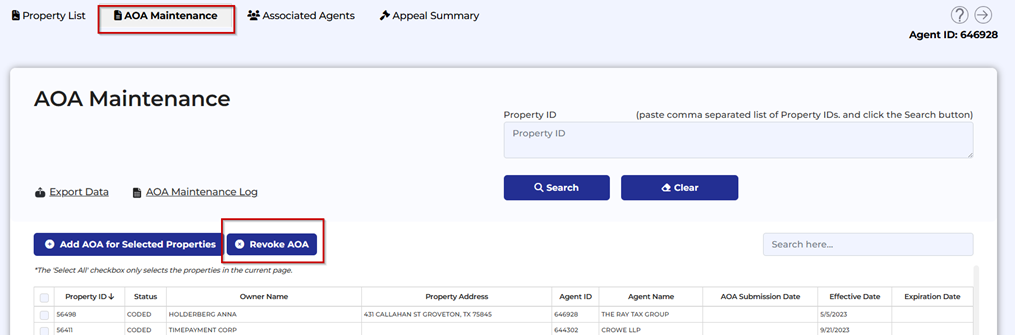
- A Revoke AOA option is now available in the Agent Portal for clients who use AOA Maintenance. This feature allows agents to select a property and remove their Agent of Record (AOA) designation directly from the portal.
- When the Revoke AOA option is used:
-The appropriate flags in PACS will be updated.
-The agent will be removed from the coded property.
–No document will be generated as part of this process.
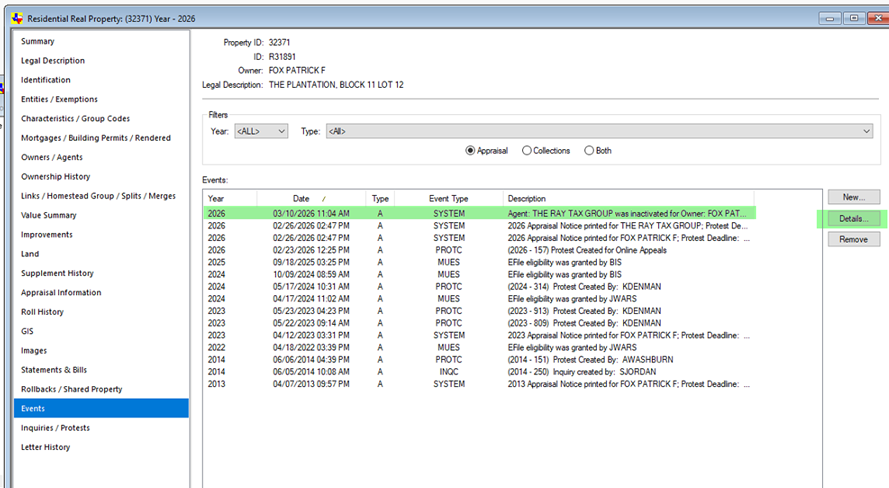
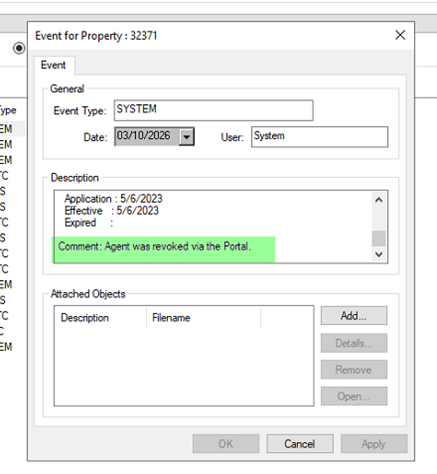
-A record of the action will be stored in the PACS Event Log, indicating when the agent was removed and that the action was completed through the online portal.
-This feature can be enabled in BIS Admin under:
Admin → Online Appeals → Agent Portal Settings → Appeal Summary → Enable Revoke AOA.
Agent Portal – Revoke AOA Confirmation Message
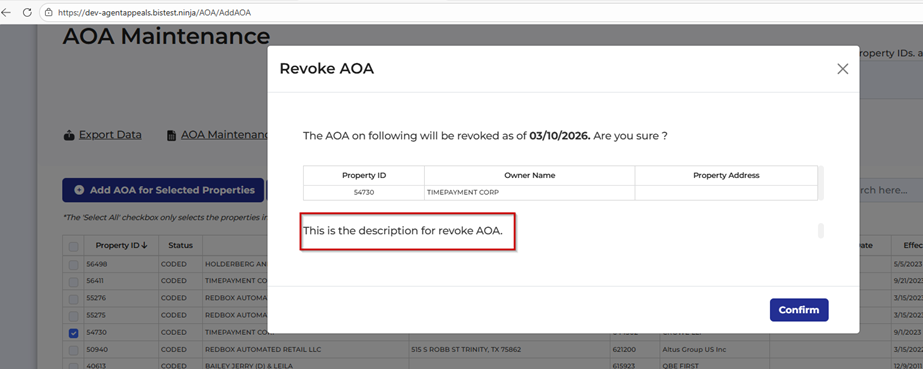
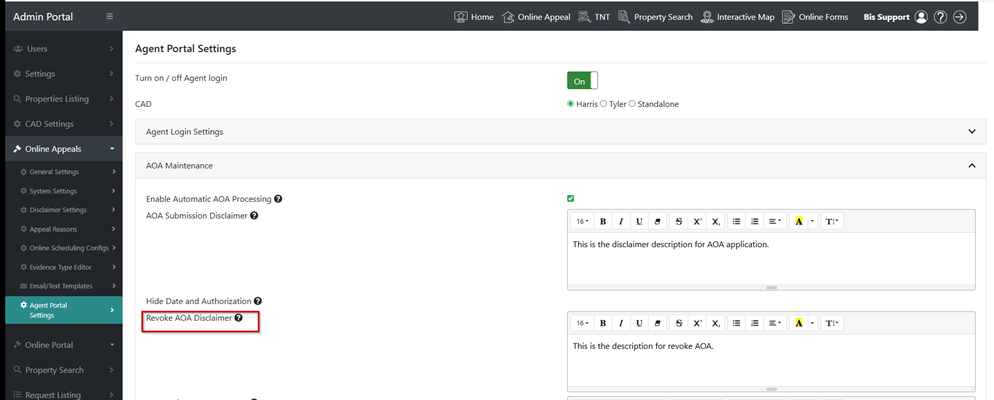
- A When an agent selects the Revoke AOA option, a confirmation pop-up will appear prompting the user to verify their selection before the action is processed.
- The text displayed in this confirmation message is fully customizable and can be updated by the CAD in BIS Admin Settings. To modify the message, navigate to:
Admin → Online Appeals → Agent Portal Settings → AOA Maintenance → Revoke AOA Disclaimer.
Agent Portal – Appeal Summary
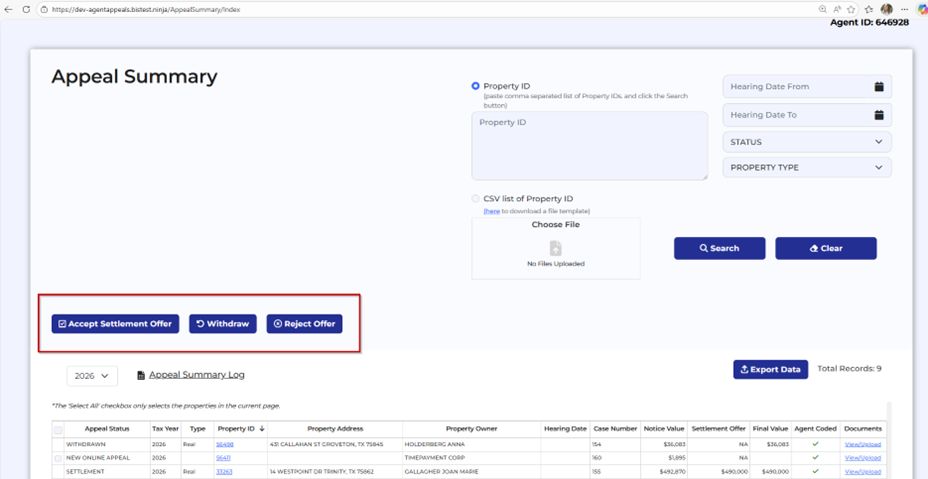
- A new setting has been added that allows clients to hide all offer action buttons on the Appeals Summary screen in the Agent Portal.
- When this setting is enabled, the Accept, Reject, and Withdraw buttons for settlement offers will be hidden from users.
This provides CAD administrators with the ability to quickly disable settlement offer actions across the platform when necessary.
Setting Location:
Admin > Online Appeals > Agent Portal Settings > Appeal Summary > Hide Offer Buttons from Appeal Summary Screens

Agent Portal – Appeal Summary Log
- A new Appeal Summary Log has been added to the Appeal Summary page in the Agent Portal. This log allows users to track actions taken on their appeals, providing greater visibility into appeal activity.
- Users can also filter log entries by date to easily review actions within a specific time frame.

