
Download a PDF Version Here.
Registering and Submitting Appeal
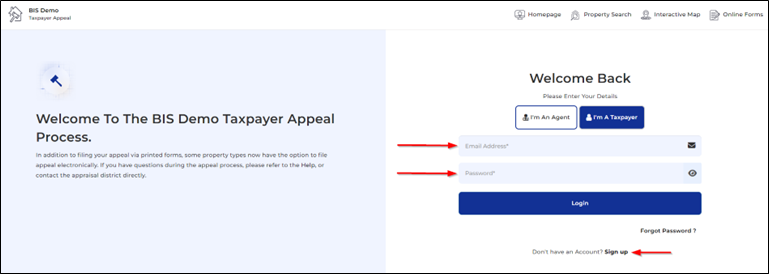
- Sign in with your email and password or register as a new user by selecting “Sign Up”
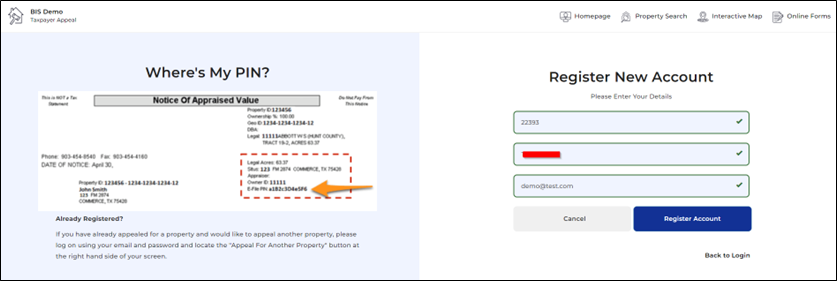
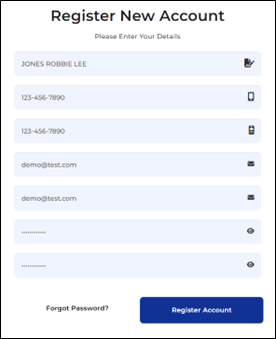
2. To register a new account, enter your property ID, E File PIN, and email address. If your entry matches the CAD records and the PID qualifies for E File, you will see green check marks in each field. Click “register account”. Enter your details and click “register account” again. You will be asked to log in.
3. Once logged in, you will be presented with the agreement to receive electronic correspondence and user agreement. Please click “Accept”. You will only be prompted to accept this agreement once.
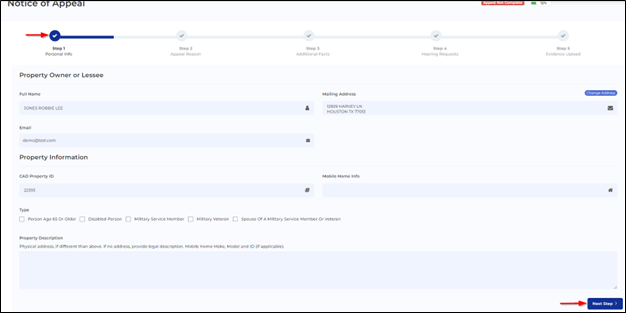
4. You will then begin the protest form for the property you registered with. Proceed through each step by clicking “Next Step”. You can go back to a previous page at any time by clicking the step number in the progress bar. When you reach step 4 and select “Submit Appeal” your appeal has been submitted and you will not be allowed to return to the previous steps.
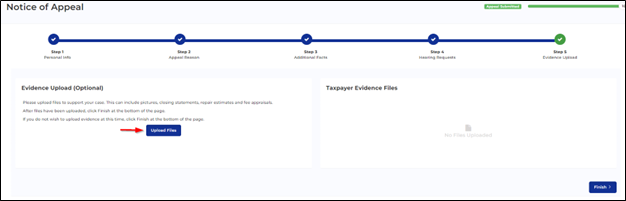
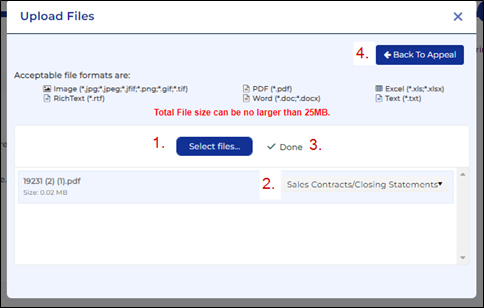
5. In step 5 you may upload your evidence. (this step is optional) Click “Select Files”, choose your files to upload and choose your evidence type. When the “Done” message appears, click “Back to Appeal”. You will be able to view the files you have uploaded. When you are finished, click “Finish”

Appeals Page
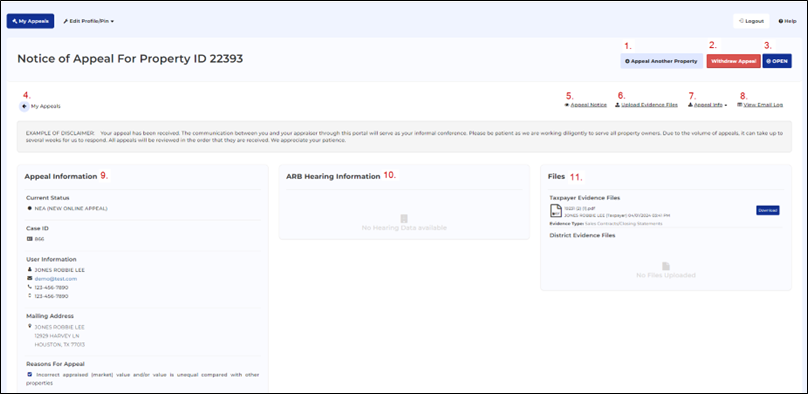

- Click here to appeal another property using your PID and PIN
- Click here to withdraw your appeal
- This field indicates whether the appeal is open or closed
- Click here to navigate to the “My Appeals” page
- Click here to view a PDF of your appeal notice
- Click here to upload evidence
- Click here to download all files associated with the appeal
- Click here to view all emails sent from the Taxpayer Appeals site
- Appeal information from your appeal notice
- When the appeal hearing is scheduled, the hearing information will be displayed here
- View and download all files uploaded by you and the district
- Submit comments or questions to the district
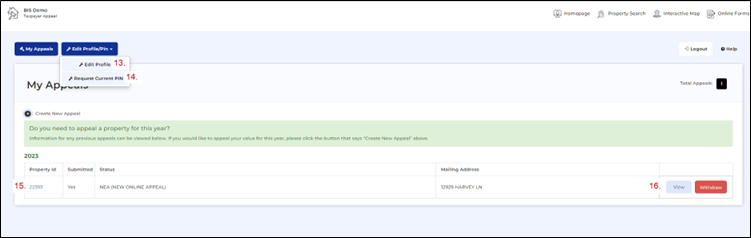
My Appeals Page
13. Edit your profile information
14. Request your current PIN
15. Click to view property information
16. View or Withdraw your appeal
Settlement and Waiver
If the CAD offers chooses to submit a settlement offer the Settlement and Waiver column will appeal on the My Appeals page and you will be allowed to open the settlement document.

You will also be able to view the settlement offer from within the appeals page.

When you open the settlement offer you will see district’s adjusted offer value.
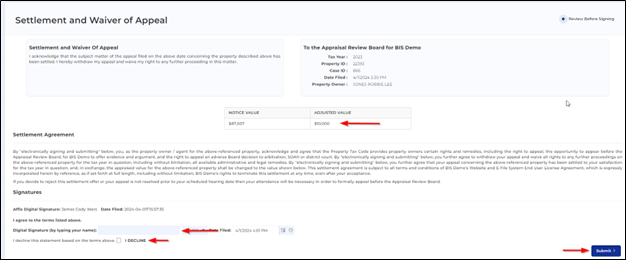
If you agree with the adjusted value, you will sign digitally by typing your name and clicking “Submit”. If you do not agree with the value and would like to reject the offer, click the box next to “I DECLINE” and click submit. The district will be notified of your response. Once you have submitted your response, you will not be able to change it.
Download a PDF Version Here.